
TL;DR – Key Takeaways
- Broken links in Shopify most commonly happen when you delete products, rename collections, change URL handles, or switch themes – and forget to set up redirects.
- About 77% of visitors who hit a 404 page will leave your store permanently. That’s not just lost traffic – it’s lost revenue.
- You can find broken links using a free crawler like WizardsTool, Google Search Console, or by running Shopify’s built-in Launch Check.
- Shopify makes fixing broken links straightforward with 301 redirects – you can create them one at a time or import them in bulk via CSV.
- Shopify has a cap of 100,000 redirects per store (20 million on Plus plans), so don’t let broken URLs pile up indefinitely – clean them up regularly.
- Build the habit of creating a redirect every single time you delete or archive a product. It takes 30 seconds and saves you from silent revenue leaks.
A customer finds your product through a Google search. They click the link, ready to buy. Instead of the product page, they see “404 – Page Not Found.”
What happens next is predictable. According to AdNabu, roughly 77% of visitors who land on a 404 page leave the site entirely – only about 23% bother trying to find what they were looking for. For an ecommerce store, that’s not just a bad user experience. It’s money walking out the door.
Broken links are one of the most common and most overlooked issues in Shopify stores. They build up quietly as you update your catalog, retire seasonal products, restructure collections, or swap themes. And if you’re not checking for them regularly, you might have dozens – or hundreds – of dead links scattered across your store right now without knowing it.
The good news is that finding and fixing them in Shopify is pretty straightforward once you know where to look.
Why Shopify Stores Get So Many Broken Links
Every ecommerce platform deals with broken links, but Shopify stores tend to accumulate them faster than a typical blog or business site. The reason is simple: product catalogs are constantly changing.
Here are the most common ways broken links appear in Shopify:
Deleted or Archived Products
This is the biggest one. When you discontinue a product and delete it from Shopify, the URL goes with it. But any links pointing to that page – from Google search results, social media posts, Pinterest boards, email campaigns, blog articles, or other sites – are now pointing at a dead end.
Shopify will automatically create a redirect if you change a product’s URL handle, but it won’t do anything automatically when you delete a product entirely. That redirect is on you.
Renamed Collections or Changed URL Handles
Reorganizing your store is healthy, but renaming a collection from “Winter Sale” to “Seasonal Deals” or changing a product’s URL handle from /products/blue-shoes-v2 to /products/blue-running-shoes creates a broken link if you skip the redirect. Shopify does offer a checkbox to create a redirect when you edit a URL handle – but it’s easy to miss, and it doesn’t cover every situation.
Theme Switches and Redesigns
Swapping your Shopify theme can change how pages are structured and linked. Navigation menus, footer links, featured product sections, and blog post links in the old theme may not map cleanly to the new one. A theme change that isn’t carefully audited almost always introduces a few broken internal links.
App Uninstalls
Some Shopify apps create their own pages and URLs – things like custom landing pages, review pages, or lookbook pages. When you uninstall the app, those URLs usually disappear, but any links pointing to them don’t.
External Links You Can’t Control
Other websites, bloggers, or influencers may have linked to specific products in your store. When those products are gone and no redirect exists, every one of those external links becomes a broken link. You can’t fix the links on their end, but you can make sure the URLs redirect somewhere useful.
Blog Content With Outdated Links
If you’ve been blogging on Shopify for a while, older posts might link to products or collections that no longer exist. These internal broken links quietly pile up as your catalog evolves.
How Broken Links Hurt Your Shopify Store
It’s tempting to think a few 404 errors here and there aren’t a big deal. But the cumulative effect is more damaging than most store owners realize.
Lost sales. This is the most direct cost. A customer who can’t find the product they clicked on will almost certainly leave. In ecommerce, there’s a very short window between “I want this” and “never mind,” and a 404 page slams that window shut. NexusMedia points out that 404 errors in ecommerce can turn away up to 88% of potential customers.
Higher bounce rates. The average ecommerce bounce rate sits somewhere between 36% and 47%, according to data aggregated by Shopify. Broken links push that number higher because visitors who hit dead ends typically don’t stick around to browse.
Damaged SEO rankings. Google treats broken links as a quality signal. A handful won’t tank your rankings, but a site riddled with 404 errors tells Google (and other search engines) that the store isn’t well-maintained. More importantly, broken links waste your crawl budget – every time Googlebot hits a dead page, that’s a crawl it could have spent on your actual products. To learn more about how this works, check out our overview of HTTP status codes.
Broken link equity. When another site links to one of your products, that link passes SEO authority (sometimes called “link juice”) to your store. If the linked product page is a 404, that authority evaporates. A redirect preserves it.
Eroded trust. Shoppers make snap judgments. If they encounter a broken page, some will question whether the store is still active, legitimate, or reliable. For smaller or newer brands especially, that first impression matters enormously.
How to Find Broken Links in Your Shopify Store
There are several ways to uncover broken links – from free external tools to Shopify’s own built-in features. I’d recommend using at least two methods to make sure nothing slips through.
Method 1: Run a Full Site Crawl With a Broken Link Checker
The most thorough approach is running your entire store through a dedicated broken link checker. This crawls every page on your site, follows every link, and reports back which ones return errors.
WizardsTool’s broken link checker crawls up to 3,000 URLs per scan for free – more than enough for most Shopify stores. It catches broken outbound links, dead internal links, and redirect problems, and you can export the results to CSV for easy reference.
Just enter your Shopify store URL, hit scan, and let it run. The results will show you exactly which pages have broken links and what HTTP status codes they’re returning (404, 500, redirect loops, etc.).
For quick checks on individual pages – like a product page you just edited or a blog post you’re updating – the WizardsTool Chrome extension lets you scan whatever page you’re currently viewing right from your browser.
Method 2: Check Google Search Console
If you’ve set up Google Search Console for your Shopify store (and if you haven’t, you should), it tracks 404 errors that Googlebot encounters while crawling your site.
To check:
- Log into Google Search Console
- Navigate to Indexing > Pages
- Look for pages listed under “Not found (404)” and “Soft 404”
This won’t catch every broken link on your site – only the ones Googlebot has encountered. But it’s a great way to spot the most visible problems, especially broken links that are costing you actual search traffic. We’ve covered this process in more depth in our guide on how to use Google Search Console to find broken links.
Method 3: Use Shopify’s Built-in Launch Check
Shopify offers a built-in diagnostic tool called Launch Check. Originally designed for pre-launch audits, it also works for established stores.
- In your Shopify admin, go to Apps > Launch Check
- Click Run launch check or New launch check
- Wait for the scan to finish
- Expand the front-end section and check for 404 errors and redirect issues
It’s not as comprehensive as a full external crawl, but it’s a quick first pass that lives right inside your admin panel.
Method 4: Manual Spot-Checks
For smaller stores, sometimes the simplest approach works. Click through your key pages – homepage, main collections, top-selling products, navigation menus, footer links, and recent blog posts. Click every link. If something’s broken, you’ll find it fast.
This isn’t scalable for large catalogs, but it’s a good habit to develop after making changes to your store – like deleting products, updating collections, or switching themes.
How to Fix Broken Links in Shopify
Once you’ve identified your broken links, Shopify gives you a few ways to fix them. The most important tool in your toolbox is the 301 redirect.
What’s a 301 Redirect?
A 301 redirect is a permanent redirect that tells browsers and search engines: “This old URL has moved permanently to this new URL.” It sends visitors to the right page automatically, and it preserves the SEO value that the old URL had accumulated.
In Shopify, all URL redirects are 301 redirects by default. (Shopify doesn’t support 302 temporary redirects through its admin – that requires custom development.)
Creating a Single Redirect
For fixing individual broken links:
- In your Shopify admin, go to Content > Menus
- Click View URL redirects
- Click Create URL redirect
- In “Redirect from,” enter the old broken URL path (just the path, not the full domain – for example,
/products/old-product-name) - In “Redirect to,” enter the new destination URL path
- Click Save redirect
The redirect takes effect immediately.
Pro tip: Don’t just redirect everything to your homepage. That’s lazy and it frustrates customers who were looking for something specific. Redirect to the closest relevant page – if you discontinued a blue running shoe, redirect to your running shoes collection. If you retired a whole collection, redirect to a related category. Ablestar recommends this approach specifically: “Link to the closest product or collection still active in your store to hold their interest.”
Bulk Importing Redirects via CSV
If you have dozens or hundreds of broken links to fix (common after a site migration or major catalog cleanup), doing them one at a time isn’t practical. Shopify supports bulk redirect imports via CSV file.
- Create a CSV file with two columns: Redirect from and Redirect to
- In your Shopify admin, go to Content > Menus > View URL redirects
- Click Import
- Upload your CSV file
- Review and confirm the import
Shopify also provides a sample CSV template you can download to make sure your formatting is correct.
Fixing the Source Link (When Possible)
A redirect is the right fix when the original URL no longer exists. But sometimes the broken link is an internal link on a page you control – like a blog post linking to a deleted product or a collection page referencing an old URL. In that case, the better fix is to update the link itself so it points directly to the correct page, rather than relying on a redirect.
Check your blog posts, navigation menus, footer links, and any manually coded sections of your theme for outdated links. If you found your broken links through a site crawler like WizardsTool, the results will tell you which page the broken link lives on, making it easy to go fix the source directly.
Things to Watch Out For
Shopify’s Redirect Limit
Shopify allows up to 100,000 URL redirects per store on standard plans (Basic, Shopify, Advanced). Shopify Plus stores get up to 20 million. For most stores, 100,000 is plenty – but if you’re running a large catalog with frequent product turnover, it can sneak up on you. Periodically review and clean out old redirects that are no longer needed.
Redirect Chains
A redirect chain happens when URL A redirects to URL B, which redirects to URL C. Shopify specifically does not support redirect chains – redirects cannot point to other redirects. If you create one, it’ll generate an error. This is actually a good thing because redirect chains slow down page loads and can confuse search engines. Just make sure every redirect points directly to a live, final destination.
URLs You Can’t Redirect
Shopify has certain reserved URL paths that you can’t use in the “Redirect from” field. These include paths starting with /apps, /cart, /orders, /collections, /products, and /services. If you need to redirect one of these, you’ll need to work around the restriction – usually by updating the source link itself rather than creating a redirect.
Automatic Redirects Only Work for URL Handle Changes
A common misconception: Shopify only creates automatic redirects when you change a product or collection’s URL handle and check the “Create a URL redirect” box. It does not automatically create redirects when you delete a product, archive a collection, or remove a page. Those redirects are entirely manual.
How to Prevent Broken Links From Building Up
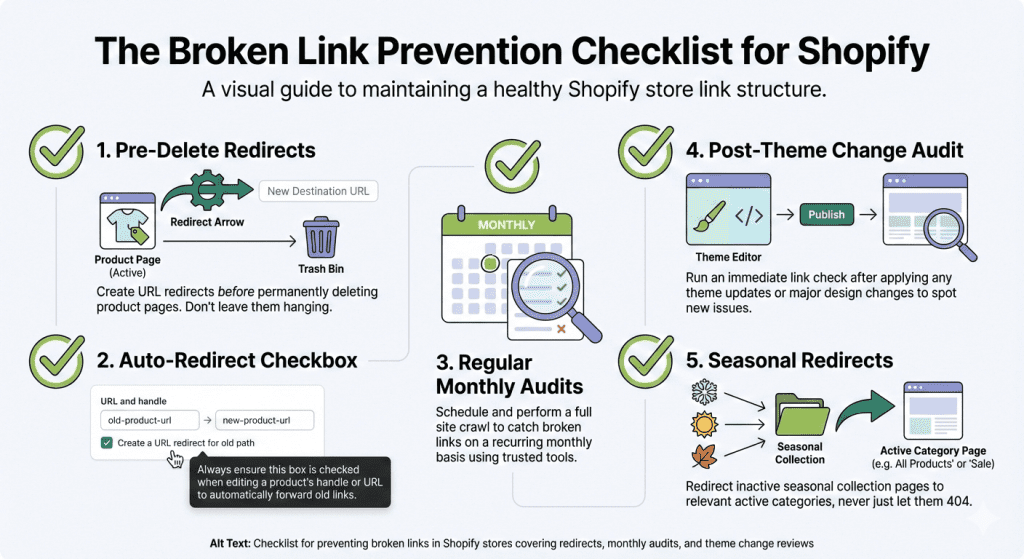
Fixing broken links is important, but preventing them in the first place saves you time and protects your traffic.
Create a redirect every time you delete a product. Make this a non-negotiable step in your workflow. Before you delete or archive any product, create a redirect from its URL to the most relevant alternative. It takes 30 seconds. For more background on why links break in the first place, take a look at our article on the reasons broken links appear on websites.
Check the “Create a URL redirect” box when editing URL handles. Whenever you change a product or collection URL handle in Shopify, make sure this checkbox is ticked. It’s easy to blow past it, especially if you’re editing in bulk.
Audit your links monthly. Run a scan with WizardsTool at least once a month – more often if you’re making frequent changes to your catalog. A quick scan catches new broken links before they affect your customers or your search rankings. For a deeper dive into finding and fixing broken links across any site, check out our step-by-step guide on how to find a broken link and fix it.
Audit after every theme change. Switching themes is one of the most common triggers for broken internal links. After any theme change, run a full link audit before you consider the migration complete.
Keep seasonal collections redirected. If you create temporary collections like “Black Friday Deals” or “Summer Sale,” don’t just delete them when the promotion ends. Redirect them to a relevant evergreen collection or your homepage. Customers and search engines may still be trying to access those URLs months later.
Monitor Google Search Console regularly. Set up email alerts in Search Console so you’re notified when new crawl errors appear. This gives you an early warning system for broken links that are already affecting your Google presence.

Leave a Reply